> ## Documentation Index
> Fetch the complete documentation index at: https://docs.withterminal.com/llms.txt
> Use this file to discover all available pages before exploring further.
# Consent Templates
> Learn how to create reusable Link configurations for branding, redirects, and ingestion defaults.
## What are Consent Templates?
Consent Templates let you create reusable configurations for Terminal Link. They are useful when you want different onboarding flows for different products, customer segments, or partner experiences without rebuilding the Link integration each time.
Each template can control:
* The display name and logo shown in Link
* Theme settings such as primary color and border radius
* Default connection settings such as sync mode, backfill days, and tags
* Whether `external_id` is required
* Redirect URLs for successful, unsupported-provider, or blocked-provider flows
* Localized content for English, French, and Spanish
Every application includes a default template. If you do not pass a template
when launching Link, Terminal uses `default`.
## Managing templates in the dashboard
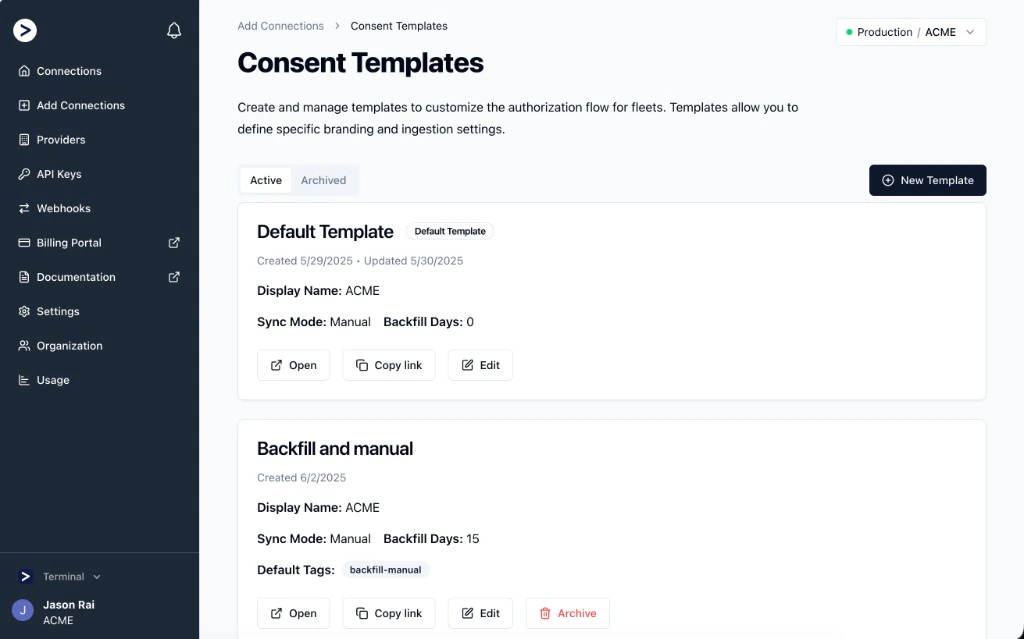
You can create and manage templates from **Add Connections** -> **Consent Templates** in the Terminal dashboard.
From the templates page you can:
* Create a new template
* Open a template-specific Link
* Copy a Link URL that already includes the template ID
* Edit an existing template
* Archive and unarchive custom templates
 Archiving a custom template does not break links that already use it. Existing
links continue to work.
## Creating a template
When you create a template, Terminal lets you configure basic connection defaults up front.
### Basic information
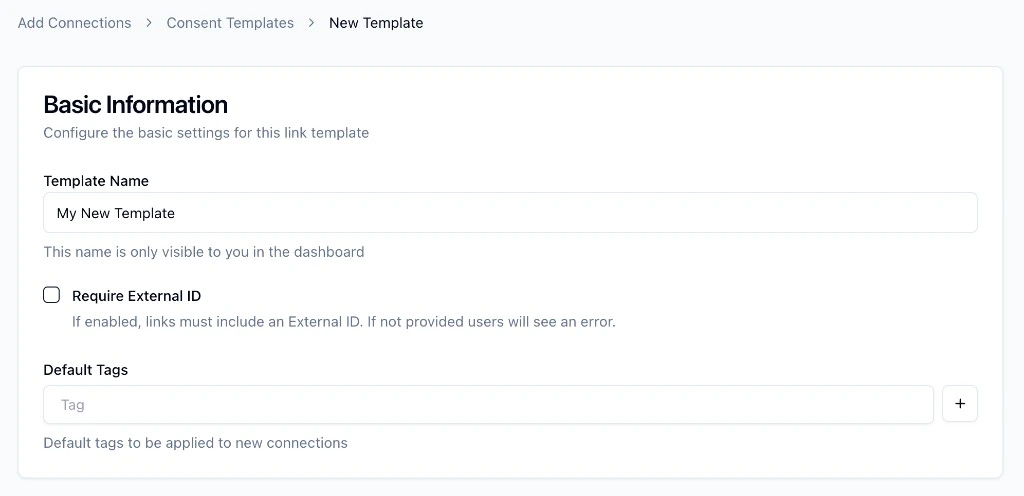
The **Basic Information** section controls the internal and connection-level defaults for the template.
* **Template Name** is only shown in the dashboard
* **Require External ID** forces Link launches to include an `external_id`
* **Default Tags** are automatically applied to new connections created with that template
Archiving a custom template does not break links that already use it. Existing
links continue to work.
## Creating a template
When you create a template, Terminal lets you configure basic connection defaults up front.
### Basic information
The **Basic Information** section controls the internal and connection-level defaults for the template.
* **Template Name** is only shown in the dashboard
* **Require External ID** forces Link launches to include an `external_id`
* **Default Tags** are automatically applied to new connections created with that template
 ## Branding and theme
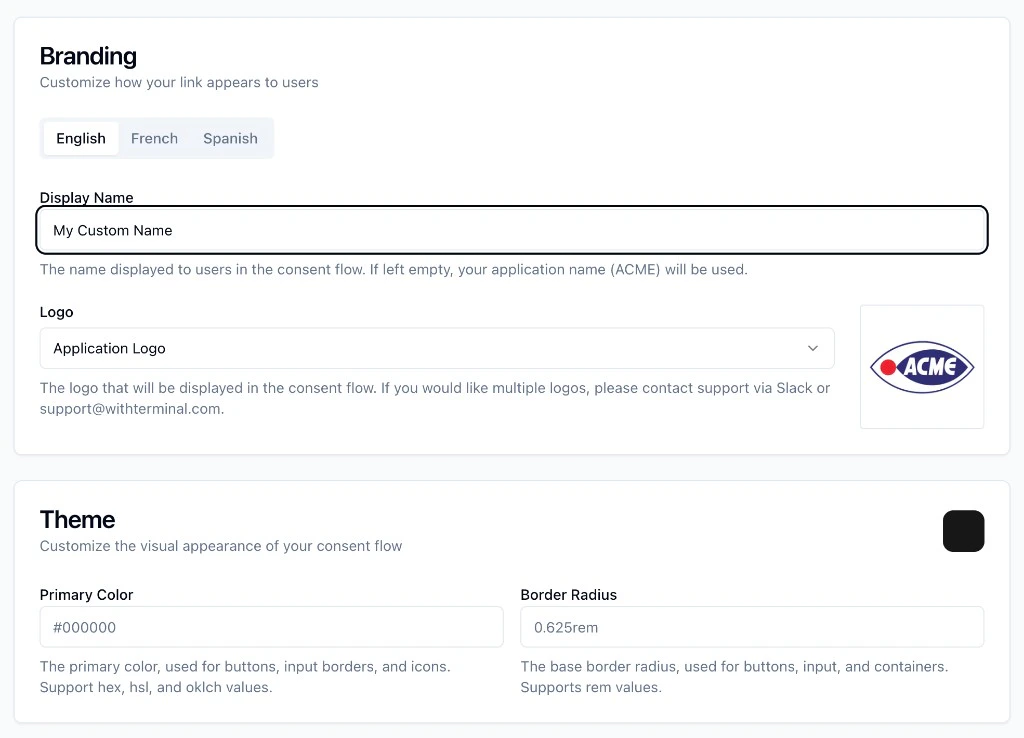
Templates can change how Link looks to the end user.
* **Display Name** changes the name shown in the consent flow
* **Logo** can use your application logo or an uploaded logo asset
* **Theme** lets you set a primary color and border radius
Terminal supports localized branding for:
* English
* French
* Spanish
If a French or Spanish display name or logo is not set, Link falls back to the English value. If the English value is also empty, Link falls back to your application branding.
If your application has uploaded custom end user agreements, you can also configure those per locale in the template editor.
## Branding and theme
Templates can change how Link looks to the end user.
* **Display Name** changes the name shown in the consent flow
* **Logo** can use your application logo or an uploaded logo asset
* **Theme** lets you set a primary color and border radius
Terminal supports localized branding for:
* English
* French
* Spanish
If a French or Spanish display name or logo is not set, Link falls back to the English value. If the English value is also empty, Link falls back to your application branding.
If your application has uploaded custom end user agreements, you can also configure those per locale in the template editor.
 ## Redirects and ingestion defaults
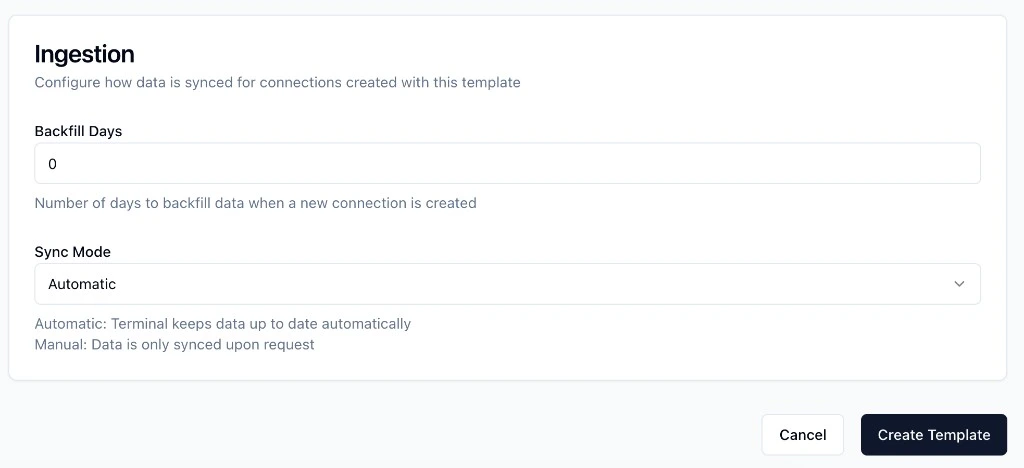
Templates can also set default behavior for new connections created through Link.
Available defaults include:
* **Success Redirect URL**
* **Unsupported Provider Redirect URL**
* **Blocked Provider Redirect URL**
* **Backfill Days**
* **Sync Mode**
`syncMode` supports:
* `automatic`: Terminal keeps the connection up to date automatically
* `manual`: data is only synced when requested
## Redirects and ingestion defaults
Templates can also set default behavior for new connections created through Link.
Available defaults include:
* **Success Redirect URL**
* **Unsupported Provider Redirect URL**
* **Blocked Provider Redirect URL**
* **Backfill Days**
* **Sync Mode**
`syncMode` supports:
* `automatic`: Terminal keeps the connection up to date automatically
* `manual`: data is only synced when requested
 ## Using a template with Link
The easiest way to use a template is to copy the Link directly from the dashboard. Terminal generates a Link URL with both your publishable key and the template ID.
If you want to construct the Link yourself, pass the template ID in the `template` parameter.
### Hosted Link
```text theme={null}
https://link.withterminal.com/?key={PUBLISHABLE_KEY}&template=ltp_01...
```
If you omit `template`, Terminal uses the default template:
```text theme={null}
https://link.withterminal.com/?key={PUBLISHABLE_KEY}
```
### SDK example
```tsx theme={null}
import { useTerminalLink } from '@terminal-api/link-react';
const terminal = useTerminalLink({
publishableKey: process.env.REACT_APP_TERMINAL_PUBLISHABLE_KEY,
params: {
template: 'ltp_01...',
},
});
```
## How template defaults are applied
Templates define defaults, but you can still override some values at launch time.
* `redirect_url` overrides the template's success redirect URL for that launch
* `sync_mode` overrides the template's sync mode for that launch
* `backfill_days` overrides the template's backfill setting for that launch
* `tags` passed at launch are combined with the template's default tags
This makes templates a good fit for reusable baseline configuration, while still allowing per-customer or per-session customization.
## Things to know
* You must be an administrator in the Terminal dashboard to manage Consent Templates
* Default templates cannot be archived
* Custom templates use IDs like `ltp_...`
* Uploaded logos and custom end user agreements appear in the template editor when available for your application. New logos or agreements must be uploaded by Terminal support before they can be selected here. To request new ones, contact [support@withterminal.com](mailto:support@withterminal.com).
* The `template` parameter works with hosted Link and the Link SDKs
## Related docs
* [Link Component](/link-component)
* [Custom Identifiers](/terminal-platform/custom-identifiers)
## Using a template with Link
The easiest way to use a template is to copy the Link directly from the dashboard. Terminal generates a Link URL with both your publishable key and the template ID.
If you want to construct the Link yourself, pass the template ID in the `template` parameter.
### Hosted Link
```text theme={null}
https://link.withterminal.com/?key={PUBLISHABLE_KEY}&template=ltp_01...
```
If you omit `template`, Terminal uses the default template:
```text theme={null}
https://link.withterminal.com/?key={PUBLISHABLE_KEY}
```
### SDK example
```tsx theme={null}
import { useTerminalLink } from '@terminal-api/link-react';
const terminal = useTerminalLink({
publishableKey: process.env.REACT_APP_TERMINAL_PUBLISHABLE_KEY,
params: {
template: 'ltp_01...',
},
});
```
## How template defaults are applied
Templates define defaults, but you can still override some values at launch time.
* `redirect_url` overrides the template's success redirect URL for that launch
* `sync_mode` overrides the template's sync mode for that launch
* `backfill_days` overrides the template's backfill setting for that launch
* `tags` passed at launch are combined with the template's default tags
This makes templates a good fit for reusable baseline configuration, while still allowing per-customer or per-session customization.
## Things to know
* You must be an administrator in the Terminal dashboard to manage Consent Templates
* Default templates cannot be archived
* Custom templates use IDs like `ltp_...`
* Uploaded logos and custom end user agreements appear in the template editor when available for your application. New logos or agreements must be uploaded by Terminal support before they can be selected here. To request new ones, contact [support@withterminal.com](mailto:support@withterminal.com).
* The `template` parameter works with hosted Link and the Link SDKs
## Related docs
* [Link Component](/link-component)
* [Custom Identifiers](/terminal-platform/custom-identifiers)