> ## Documentation Index
> Fetch the complete documentation index at: https://docs.withterminal.com/llms.txt
> Use this file to discover all available pages before exploring further.
# Vehicle & Driver Filtering
## Overview
Terminal allows you to filter vehicle and driver data by status (active/inactive) and by specific Terminal IDs. These filters enable you to limit the data pulled from provider systems to only what is relevant to you.
## Common Use Cases
* **Reducing Data Volume and Costs**: Limit ingestion to only active vehicles/drivers. This is especially valuable for fleets with many inactive vehicles.
* **Multi-Fleet TSP Accounts**: For fleets that share TSP (Telematics Service Provider) accounts with other fleets, you can selectively ingest only vehicles/drivers which are part of the relevant fleet.
* **Precise Control**: Use `includeIds` to specify exactly which vehicles/drivers should be ingested, regardless of their status.
## Filter Structure
You can set filters on a given connection using a JSON structure that specifies filter criteria.
**Available Filter Options:**
* `status`: Filter by vehicle/driver status (e.g. `active` to include only active vehicles/drivers)
* `excludeIds`: Array of Terminal Vehicle/Driver IDs to exclude from data ingestion
* `includeIds`: Array of Terminal Vehicle/Driver IDs to include in data ingestion (takes priority over other filters)
```json theme={null}
{
"filters": {
"vehicles": {
"status": "active",
"excludeIds": ["vcl_01D8ZQFGHVJ858NBF2Q7DV9MNC"],
"includeIds": ["vcl_01D8ZQFGHVJ858NBF2Q7DV9MND"]
},
"drivers": {
"status": "active",
"excludeIds": ["drv_01D8ZQFGHVJ858NBF2Q7DV9MNC"],
"includeIds": ["drv_01D8ZQFGHVJ858NBF2Q7DV9MND"]
}
}
}
```
## Filter Priority Rules
The filtering system follows a specific priority order:
1. **`includeIds` takes highest priority**: If `includeIds` is present and non-empty, all other filter criteria (`status` and `excludeIds`) are ignored, and only the specified IDs are ingested.
2. **Standard filtering**: If `includeIds` is absent or empty, the system applies:
* First: `status` filtering (if specified)
* Then: Remove any IDs listed in `excludeIds`
### Examples
**Include-only filtering (highest priority):**
```json theme={null}
{
"filters": {
"vehicles": {
"status": "active",
"excludeIds": ["vcl_123"],
"includeIds": ["vcl_456", "vcl_789"]
}
}
}
```
In this case, only vehicles `vcl_456` and `vcl_789` will be ingested, regardless of their status or the exclude list.
**Standard filtering:**
```json theme={null}
{
"filters": {
"vehicles": {
"status": "active",
"excludeIds": ["vcl_123"]
}
}
}
```
In this case, all active vehicles will be ingested except for `vcl_123`.
## Applying Filters
### For Existing Connections via API
You can add or update filters on existing connections using the [`PATCH /connections/current`](https://docs.withterminal.com/api-reference/connections/update-current-connection) endpoint. Include the `filters` object in your request body with the desired configuration.
To view the current filters applied to a connection, use the [`GET /connections/current`](https://docs.withterminal.com/api-reference/connections/get-current-connection) endpoint.
### For Existing Connections via Terminal Dashboard
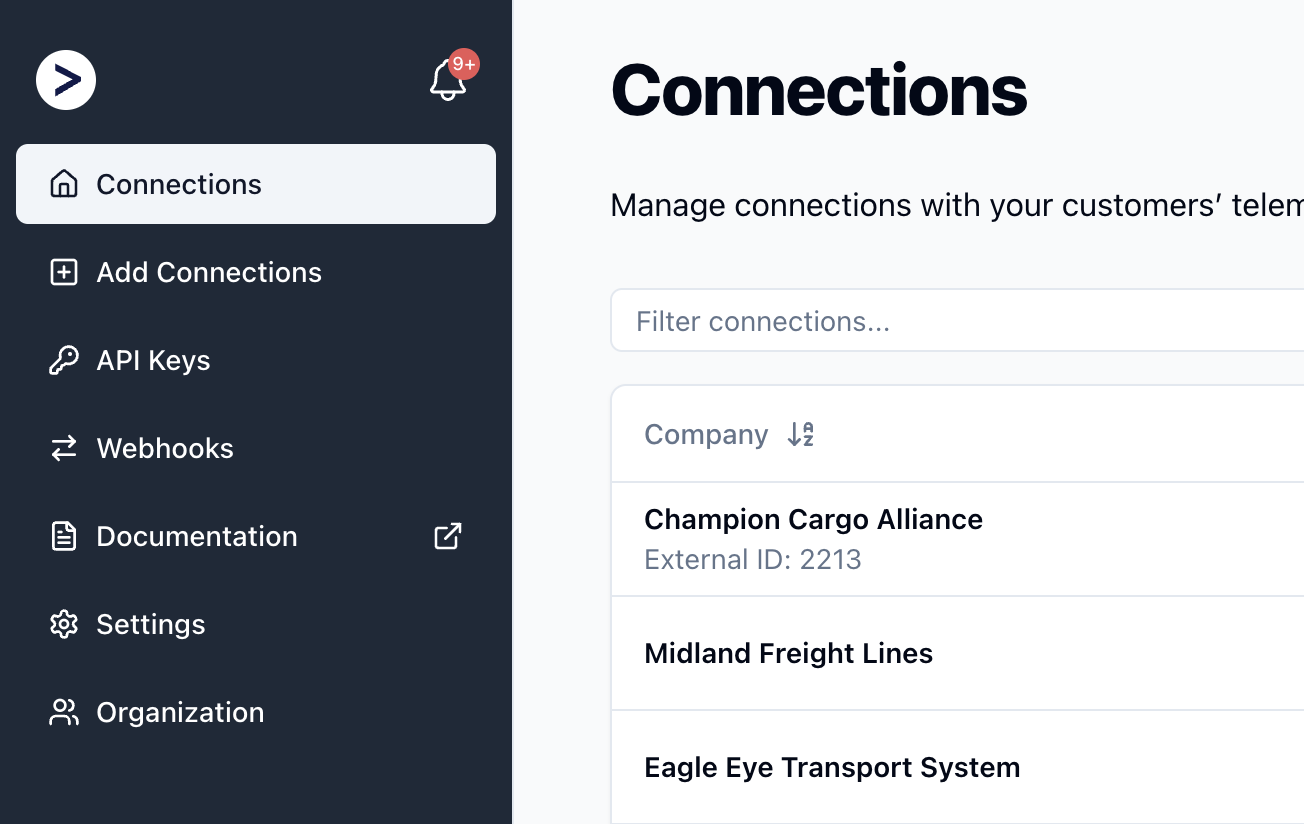
1. Navigate to the [Connections](https://dashboard.withterminal.com/) page in the Terminal Dashboard.
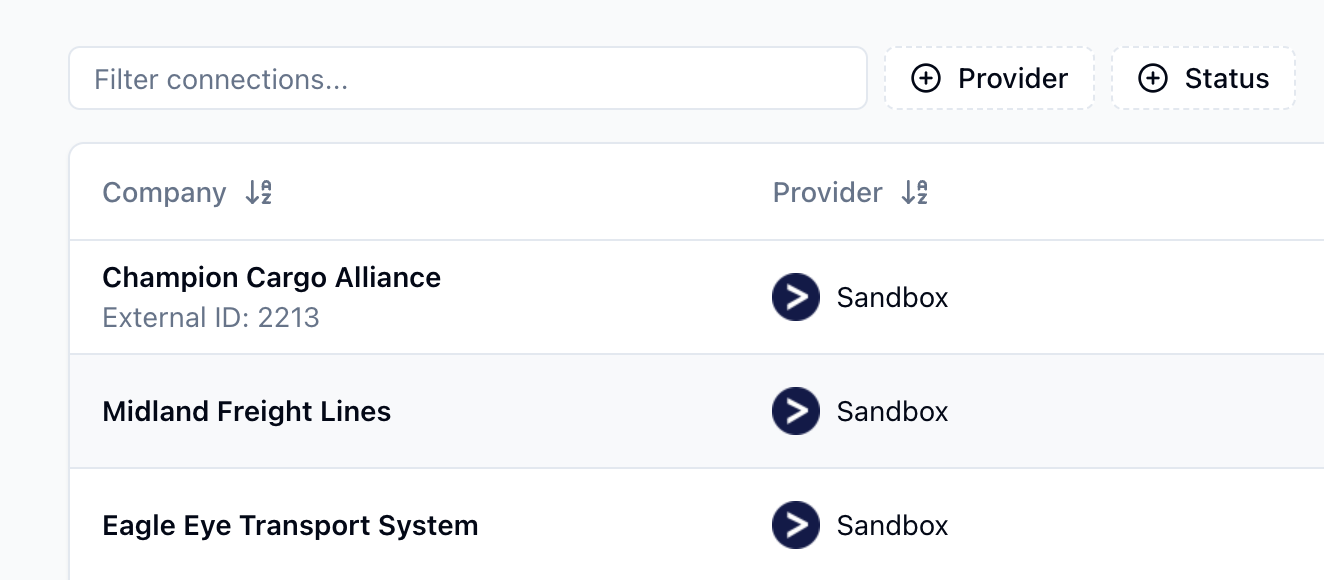
 2. Click on the desired connection to open the connection details page.
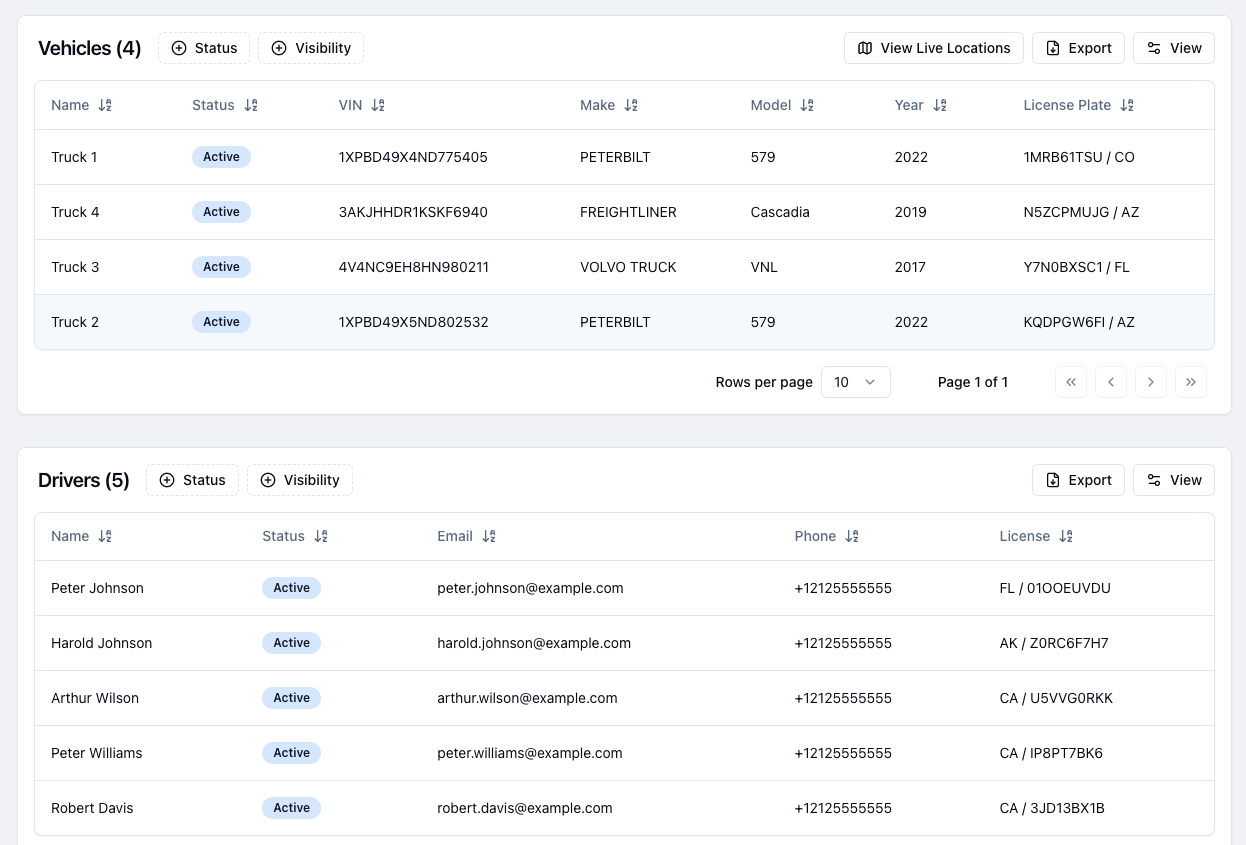
 3. Click `Visibility` above the Vehicle or Driver table.
 4. Click `Manage Vehicle/Driver Filtering`.
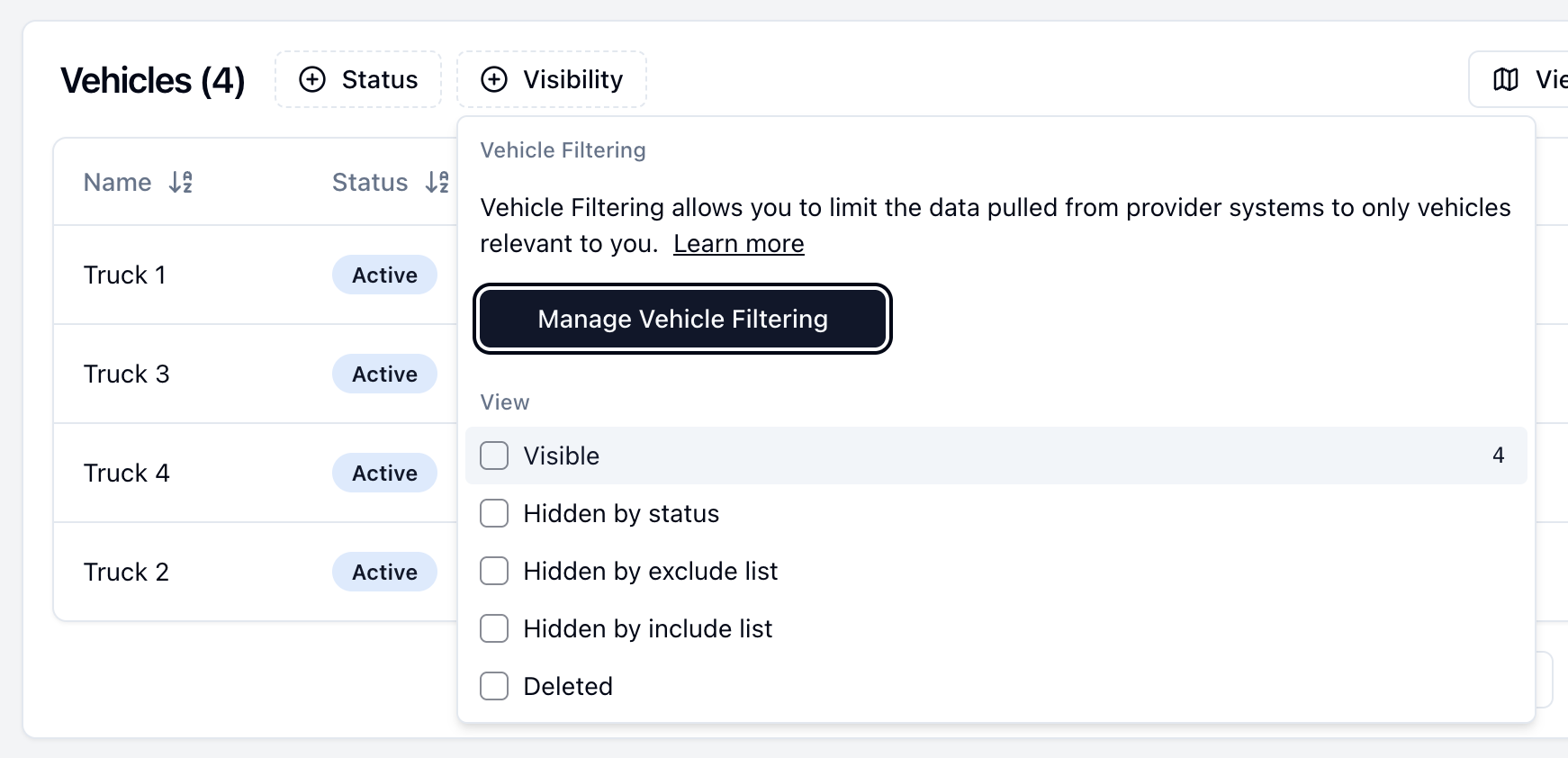 5. Configure filtering to include/exclude specific vehicles or drivers.
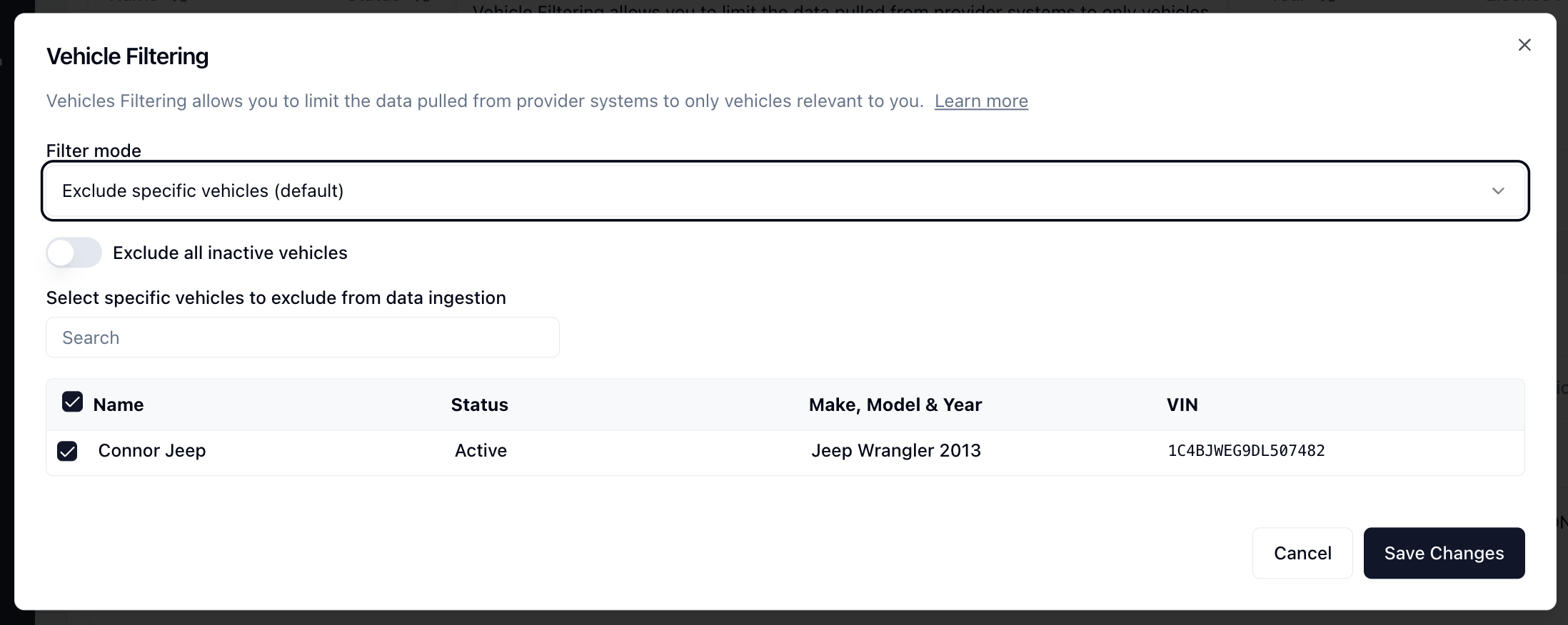
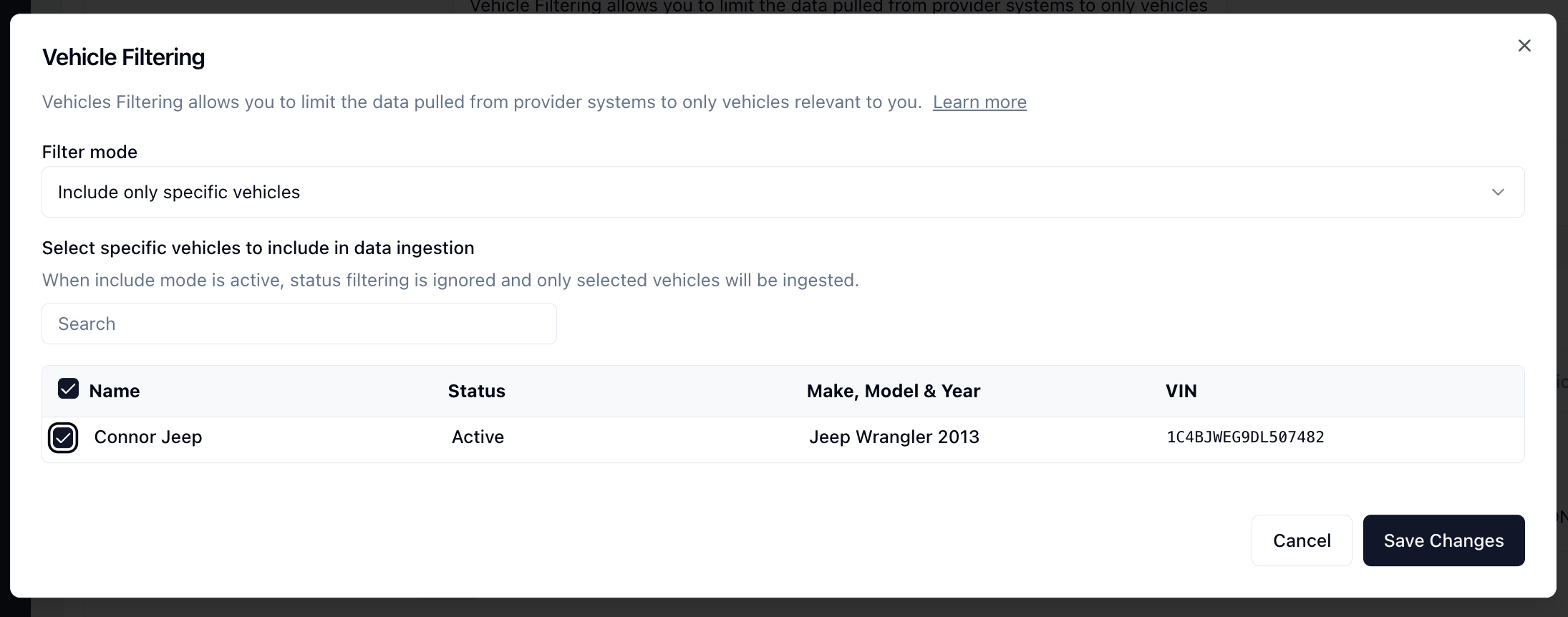 6. Click `Save Changes`.
You can also view the vehicles or drivers that are currently filtered by enabling the `Visibility` column in the Vehicle or Driver table via the `View` button above the table.
### For New Connections
1. **Initial Setup**: When creating a new connection with filtering, Terminal first needs to perform an initial sync to identify all vehicles and drivers. To prevent ingesting unnecessary data before applying filters: - Set sync mode to `manual` - Set `backfill` days to `0`
Configure these sync settings through the \[\`Link
Component\`]\([https://docs.withterminal.com/link-component](https://docs.withterminal.com/link-component)) or in the
Terminal Dashboard under `Add Connections`->`Advanced Options`.
2. **Complete Initial Discovery**: Allow the first sync to complete. This identifies all vehicles and drivers without pulling their historical data.
3. **Apply Your Filters**: After the initial sync, use the `PATCH /connections/current` endpoint to set relevant vehicle and driver filters.
4. **Historical Data (Optional)**: If you need historical data, request a backfill after applying filters. This ensures you only retrieve historical data for filtered vehicles and drivers.
5. **Enable Automatic Syncing**: For ongoing data collection, change the sync mode to `automatic`. This keeps your data current while respecting your filters.
This approach ensures you only ingest data for vehicles and drivers that match your filter criteria, both for historical and future data collection.
6. Click `Save Changes`.
You can also view the vehicles or drivers that are currently filtered by enabling the `Visibility` column in the Vehicle or Driver table via the `View` button above the table.
### For New Connections
1. **Initial Setup**: When creating a new connection with filtering, Terminal first needs to perform an initial sync to identify all vehicles and drivers. To prevent ingesting unnecessary data before applying filters: - Set sync mode to `manual` - Set `backfill` days to `0`
Configure these sync settings through the \[\`Link
Component\`]\([https://docs.withterminal.com/link-component](https://docs.withterminal.com/link-component)) or in the
Terminal Dashboard under `Add Connections`->`Advanced Options`.
2. **Complete Initial Discovery**: Allow the first sync to complete. This identifies all vehicles and drivers without pulling their historical data.
3. **Apply Your Filters**: After the initial sync, use the `PATCH /connections/current` endpoint to set relevant vehicle and driver filters.
4. **Historical Data (Optional)**: If you need historical data, request a backfill after applying filters. This ensures you only retrieve historical data for filtered vehicles and drivers.
5. **Enable Automatic Syncing**: For ongoing data collection, change the sync mode to `automatic`. This keeps your data current while respecting your filters.
This approach ensures you only ingest data for vehicles and drivers that match your filter criteria, both for historical and future data collection.