> ## Documentation Index
> Fetch the complete documentation index at: https://docs.withterminal.com/llms.txt
> Use this file to discover all available pages before exploring further.
# Crash Reports
> Receive detailed reports when crash events are detected across connections
## Overview
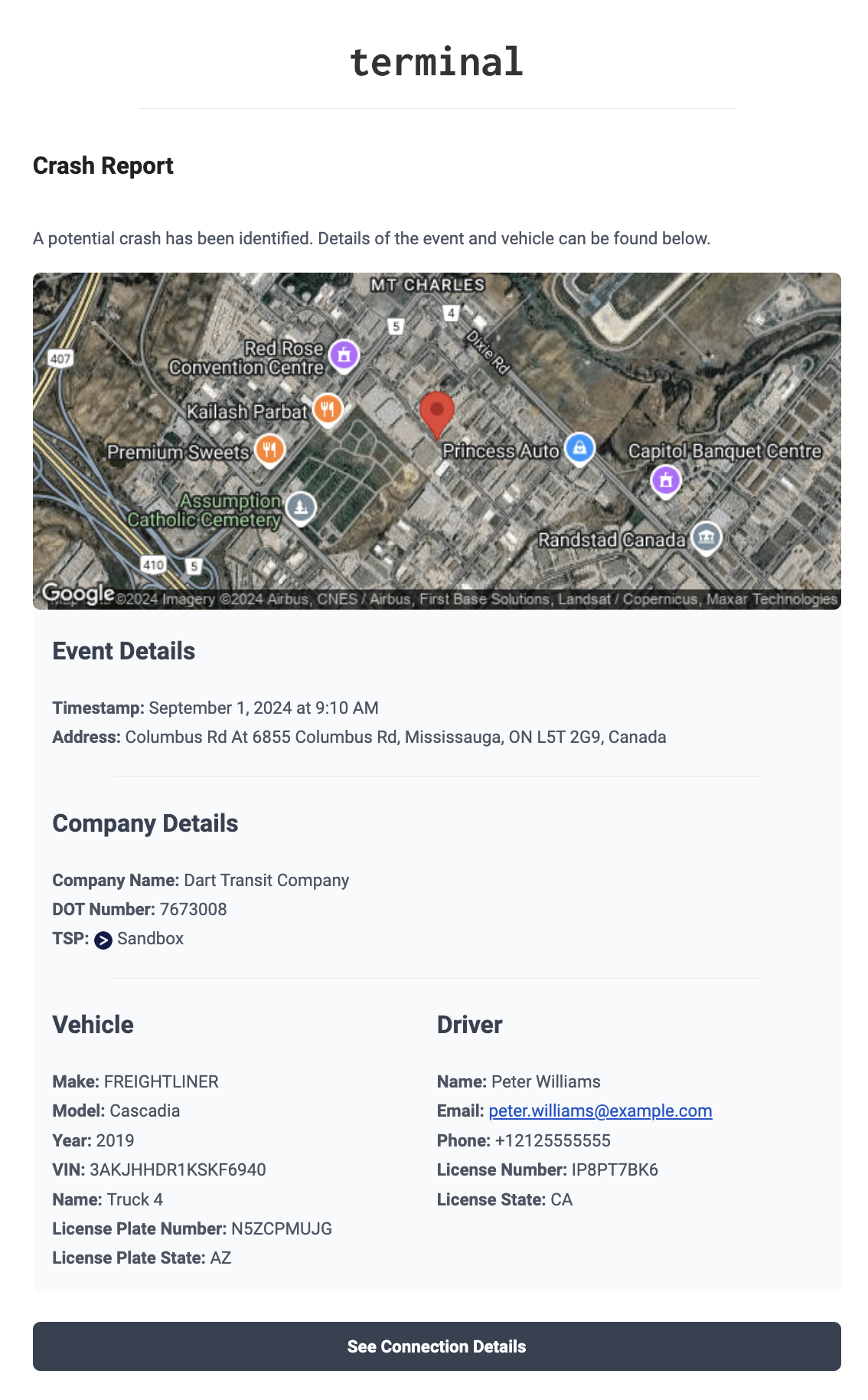
**Crash Reports** generate and send detailed notifications when a crash is detected during safety event ingestion. These reports include:
* Event details (time, location, address)
* Vehicle information
* Driver details (if available)
* Camera footage (front and rear-facing, if available)
* Map view of the incident location
The information is sent as an email notification to subscribed recipients, providing a complete overview of the incident.
## How It Works
When ingesting safety events, we monitor for `crash` events. When a crash event is detected, the crash notification workflow is triggered. If configured to do so, it retrieves and downloads any available camera media related to the incident. Following this, a comprehensive report is sent via email to configured recipients. Here's an example:
## How to Configure
1. Navigate to [**Settings > Application Settings**](https://dashboard.withterminal.com/settings) section of the dashboard.
2. Locate the **Crash Reporting** option.
3. Choose your desired global setting (**Enabled**, **Disabled**, or **Enabled Per Connection**).
4. If you select **Enabled Per Connection**:
* Click **Edit Connections** to open a popup showing all connections.
* Toggle the switch for each connection to enable or disable crash notifications.
5. Set your preference for whether media files should be attached to email notifications.
**Note:** Users will only receive crash report notifications when they have
opted to receive crash report notifications in their [personal
settings](/terminal-platform/user-notifications).
## Configuration Options
**Global Setting**
* Crash reporting can be **Enabled**, **Disabled**, or **Enabled Per Connection**
**Per-Connection Setting**
When the global setting is set to **Enabled Per Connection**:
* Crash reports will only be sent for selected connections
* Use the **Edit Connections** popup to toggle crash reporting on/off for each connection
**Attach Media to Notifications**
* When **Enabled**, emails will include videos from the event when camera media is available
* When **Disabled**, emails will be sent without any media attachments
## Supported Providers
To see which providers support crash reports, use the [Provider Explorer](/providers/explorer) and filter for **Crash Report**.