

Overview
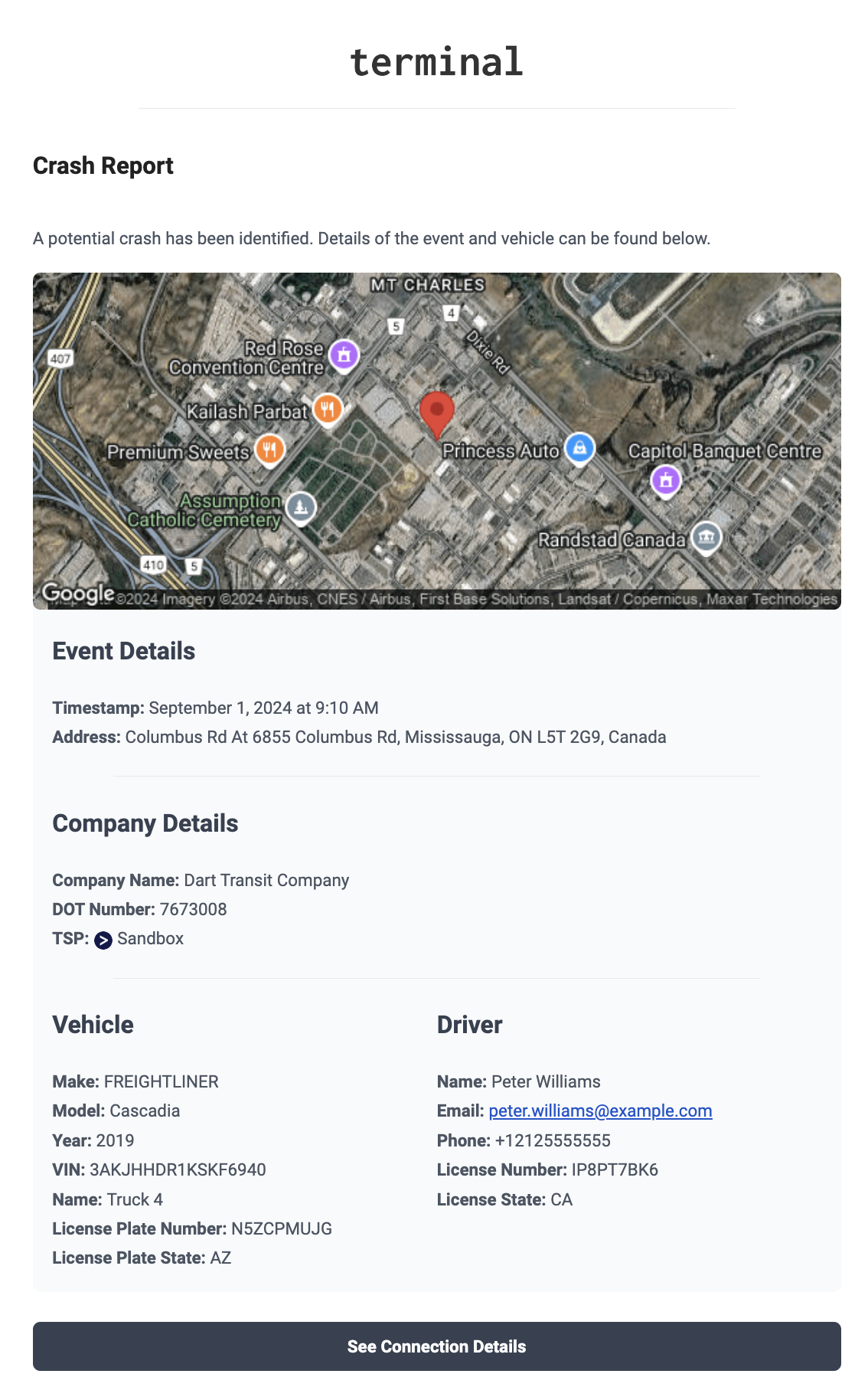
Crash Reports generate and send detailed notifications when a crash is detected during safety event ingestion. These reports include:- Event details (time, location, address)
- Vehicle information
- Driver details (if available)
- Camera footage (front and rear-facing, if available)
- Map view of the incident location
How It Works
When ingesting safety events, we monitor forcrash events. When a crash event is detected, the crash notification workflow is triggered. If configured to do so, it retrieves and downloads any available camera media related to the incident. Following this, a comprehensive report is sent via email to configured recipients. Here’s an example:
How to Configure
- Open Settings > Safety & Privacy in the Dashboard.
- In the Crash Reports section, find the Crash Reporting option.
- Choose your desired global setting (Enabled, Disabled, or Enabled Per Connection).
- If you select Enabled Per Connection:
- Click Edit Connections to open a popup showing all connections.
- Toggle the switch for each connection to enable or disable crash notifications.
- Under Send Emails For and Attach Camera Media, choose which crashes send an email and whether camera media is attached.
- Click Save Changes.
Note: Users will only receive crash report notifications when they have
opted to receive crash report notifications in their personal
settings.
Configuration Options
Global Setting- Crash reporting can be Enabled, Disabled, or Enabled Per Connection
- Crash reports will only be sent for selected connections
- Use the Edit Connections popup to toggle crash reporting on/off for each connection
- Every Crash: an email is sent for every detected crash
- Only Crashes with Camera Media: an email is sent only when camera media is available for the crash
- When on, emails include videos from the event when camera media is available
- When off, emails are sent without media attachments