

What are Consent Templates?
Consent Templates let you create reusable configurations for Terminal Link. They are useful when you want different onboarding flows for different products, customer segments, or partner experiences without rebuilding the Link integration each time. Each template can control:- The display name and logo shown in Link
- Theme settings such as primary color and border radius
- Default connection settings such as sync mode, backfill days, and tags
- Whether
external_idis required - Redirect URLs for successful, unsupported-provider, or blocked-provider flows
- Localized content for English, French, and Spanish
Every application includes a default template. If you do not pass a template
when launching Link, Terminal uses
default.Managing templates in the dashboard
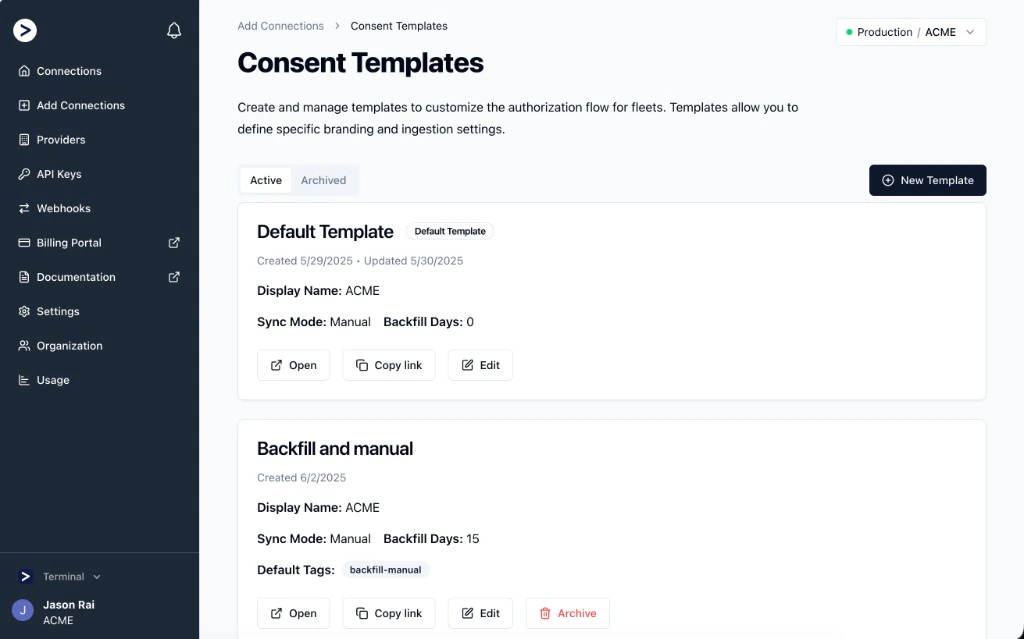
You can create and manage templates from Add Connections -> Consent Templates in the Terminal dashboard. From the templates page you can:- Create a new template
- Open a template-specific Link
- Copy a Link URL that already includes the template ID
- Edit an existing template
- Archive and unarchive custom templates
Creating a template
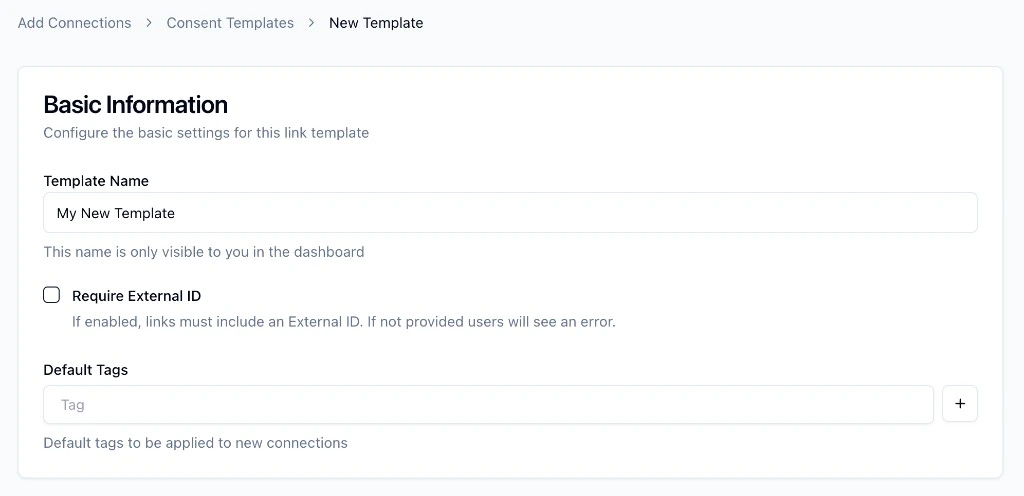
When you create a template, Terminal lets you configure basic connection defaults up front.Basic information
The Basic Information section controls the internal and connection-level defaults for the template.- Template Name is only shown in the dashboard
- Require External ID forces Link launches to include an
external_id - Default Tags are automatically applied to new connections created with that template
Branding and theme
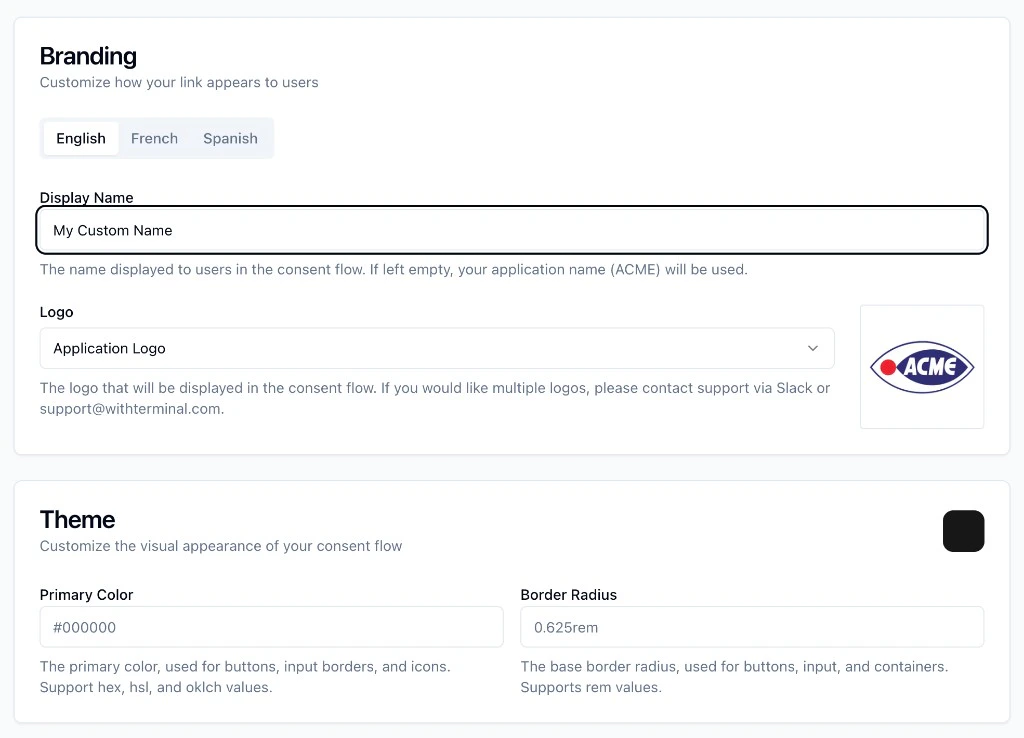
Templates can change how Link looks to the end user.- Display Name changes the name shown in the consent flow
- Logo can use your default logo or any logo in your library, and you can upload a new one without leaving the editor
- Theme lets you set a primary color and border radius
- English
- French
- Spanish
Redirects and ingestion defaults
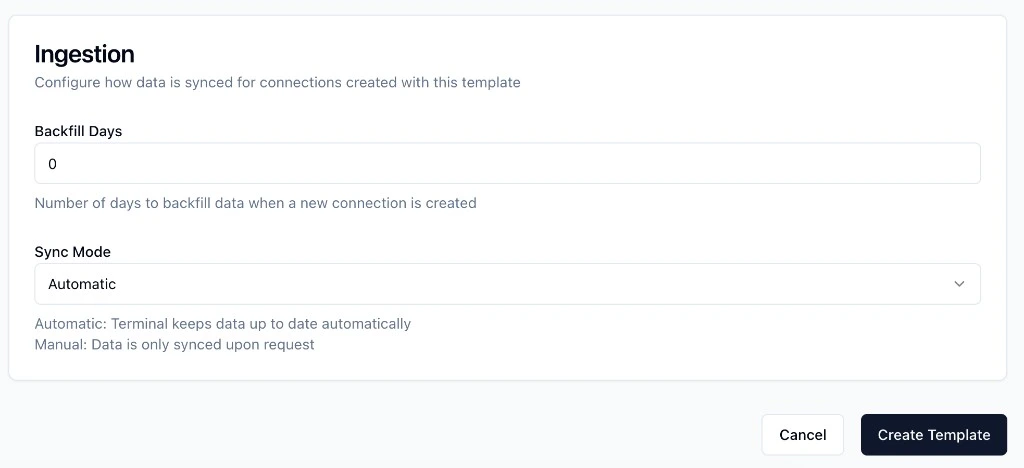
Templates can also set default behavior for new connections created through Link. Available defaults include:- Success Redirect URL
- Unsupported Provider Redirect URL
- Blocked Provider Redirect URL
- Backfill Days
- Sync Mode
syncMode supports:
automatic: Terminal keeps the connection up to date automaticallymanual: data is only synced when requested
Provider access control
By default, every template follows the Provider Access Control setting on your application. A template can instead define its own, which is useful when one segment of your customers should see a different set of providers. In the template editor, open Provider Access Control and choose a Provider Access Mode:- Use application setting: the template follows your application configuration. This is the default.
- Allow All Providers, Allow Only Selected, or Block Selected: the template defines its own list.
Switch the mode back to Use application setting to remove the override.
Fleets then see whatever your application configuration allows, including any
providers Terminal adds later.
Using a template with Link
The easiest way to use a template is to copy the Link directly from the dashboard. Terminal generates a Link URL with both your publishable key and the template ID. If you want to construct the Link yourself, pass the template ID in thetemplate parameter.
Hosted Link
template, Terminal uses the default template:
SDK example
How template defaults are applied
Templates define defaults, but you can still override some values at launch time.redirect_urloverrides the template’s success redirect URL for that launchsync_modeoverrides the template’s sync mode for that launchbackfill_daysoverrides the template’s backfill setting for that launchtagspassed at launch are combined with the template’s default tags
Things to know
- You must be an administrator in the Terminal dashboard to manage Consent Templates
- Default templates cannot be archived
- Custom templates use IDs like
ltp_... - Every logo in your library appears in the template editor. Upload new ones from the editor or from Settings > Branding. Custom end user agreements still need to be uploaded by Terminal support; to request one, contact support@withterminal.com.
- The
templateparameter works with hosted Link and the Link SDKs